Sadlier Connect District Admin Account Access
District Level Access to Sadlier Connect
We now have a district admin role in Sadlier Connect. This role allows the district admin to view all schools in the district with access to Sadlier Connect using a single access point. The district level account allows full admin functionality unless the school is integrated which limits access to view only.
District admins can rollover Sadlier Connect data for all or some schools at one time. Reporting and exports can be done at the district level. District admins are also able to create school admin accounts for non-teaching or users who need admin access to Sadlier Connect.
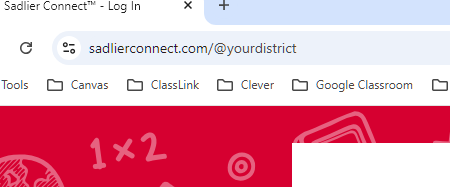
District admins have a separate URL and credentials for access, even when the school(s) in integrated.
|
Log in
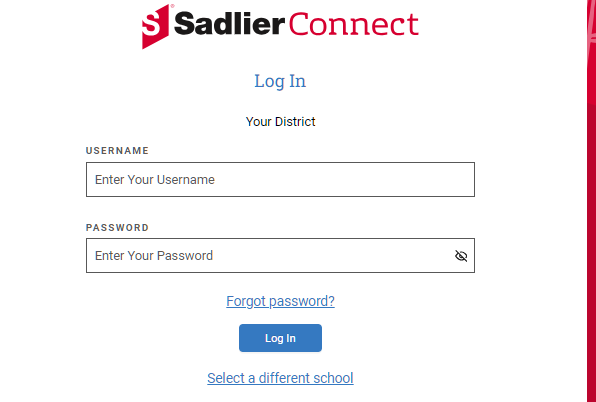
Log in using the username and password provided to you by the Sadlier Connect team. |
|
|
| School Access
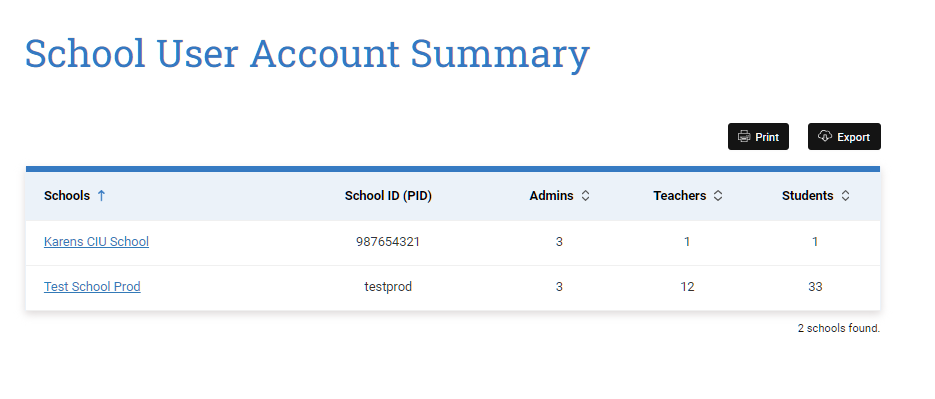
The main page hosts the list of schools in the district that currently use Sadlier Connect*. Click the school you would like to manage at a school admin level. *Schools not listed may not have renewed access or may no longer be using Sadlier Connect. |
|
|
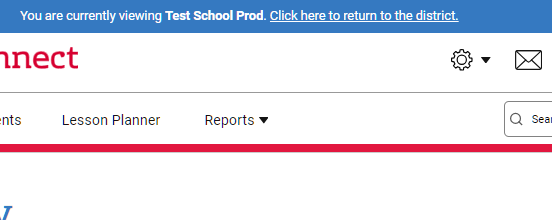
View School as a School Admin
|
|
|
| Reports
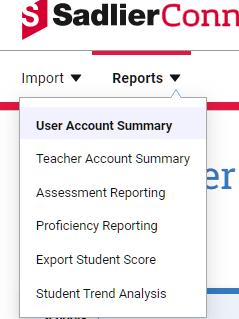
All reporting can be accessed at the district level. User Account Summary is the main page of the District Level site and provides a list of schools and number of teachers and students. Teacher Account Report Contains: Teacher (last name, first name), Classes (count), Students (count), Assignments (count), and Last Login (Date and time) Assessment Report Drill down into assessments to see the Number of Students within these ranges for the assessment: < 65, 65-79, 80-89, and 90+ Class Proficiency Report Similar to the assessment report but shows standards instead of assessments as a whole Student Scores Report There are several filter options, including teacher name and class. The report contains First Name, Last Name, Assignment Name, Due Date, and Score. Student Trend Analysis Shows student grades week by week. |
|
|
Manage Users and Classes
*Integrated schools will have "view" only access as rostering takes place from the LMS or rostering system.
Rollover Sadlier Connect data for all schools
|
|
|
| Manage school access for additional users
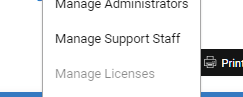
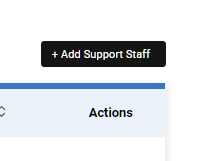
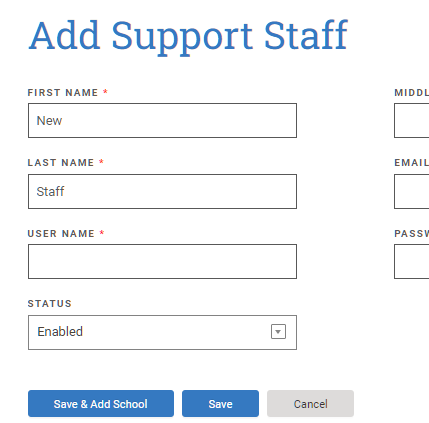
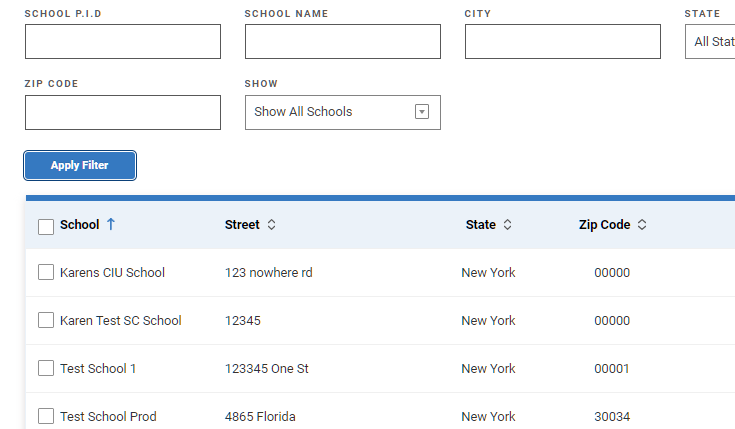
Whether you are integrated and have users not present in the SIS or you have users who need admin access to Sadlier Connect, as the District Admin, you can add the user using the Manage Support Staff function Support Staff are added at the school level by clicking Manage Support Staff from the gear icon. You can edit or add staff accounts. When creating a new support staff account, use new credentials not used by any user in the system. The email address does not have to be validated. You can add the support staff account to one or more schools. Support Staff log in at the District Level page. |
|